Export, installation and sharing
From the finished file to your colleague.
The export
As .xlam builds the file and downloads it. Validation runs first; errors stop the export, warnings do not.
The file holds everything: ribbon XML, embedded icons, your VBA modules, context menu code, the profile system and your forms. Nothing needs importing after the download.
Installing
On Windows the system blocks files that come from the internet or from another computer. Excel then runs no macros, and the add-in does nothing. So unblock it first: right-click the file → Properties → at the bottom of the General tab, under Security, tick Unblock → OK.
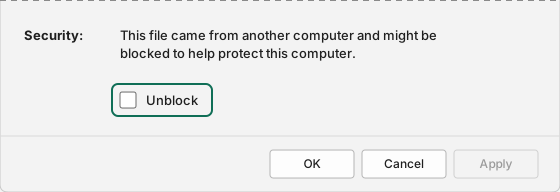
- Put the file somewhere it is allowed to stay.
- In Excel go to File → Options → Add-ins.
- At the bottom, under Manage, pick Excel Add-ins and click Go.
- Browse, select the file, tick the box.
On first open Excel may ask about macros. An .xlam is a macro container by
definition; without macros enabled it does nothing.
Move the file later and Excel loses it. Untick and add it again.
Updating
Export again and replace the old file. Excel picks up the new version on the next start. The tick survives as long as name and location do.
Sharing projects
Next to the .xlam there is the project file with the .addinstudio
extension. It holds not the finished add-in but its blueprint, and the recipient
can keep working on it.
Export and import sit next to each other in every area and accept only what belongs there. A snippet file dropped into the modules area is refused with a clear message.
An import always makes a copy. It overwrites nothing. Where ids or procedure names collide with what is already there, they are renamed and the renaming is shown.
Uploaded icons travel as bytes, not as a reference. A plain JSON file would arrive at your colleague with broken images, and silently at that.
Before anything is taken over you see what the file contains, with every block of code expandable. Until you confirm, nothing has happened.
Bringing in a ribbon built in Excel
If you have so far clicked your ribbon together in Excel itself (File › Options › Customize Ribbon), From Excel in the toolbar brings it into the project. It comes with Pro, because the import brings modules along.
It takes two files that belong together:
- the
.exportedUI, from Excel under Customize Ribbon › Import/Export › Export all customizations. It holds tabs, groups, buttons, icons and, for each button, the name of its macro, but no code. - the workbook with the code:
.xlsm,.xlamorPERSONAL.XLSB. It is optional.
You can choose both at once, or only the .exportedUI first. The review then
offers Add the workbook with the code, and the import runs again with the
same ribbon file. Both files are read in your browser, nothing is uploaded.
What happens: the code of your standard modules arrives unchanged as modules in the project. Each button gets a single line that calls its macro; the macro itself stays as it was. As with every import you get a copy, and before that you see how many lines of VBA come along and which.
What does not come along is listed in the review:
- the Quick Access Toolbar and changes to Excel's own groups (hiding, moving); groups you put into an Excel tab stay there,
- menus, dropdown lists and custom icons,
- class, form and sheet modules,
- buttons whose macro is missing, private or expects parameters. They arrive empty and say in a comment which macro they used to call.
Accented letters also arrive intact from workbooks whose code is in UTF‑8
(code page 65001, or a module that once went through a UTF‑8 editor as a
.bas). If the workbook already contains a replacement character � – often
shown as � – the letter was lost there already; the review dialog names the
module, and the project check shows the places to fix by hand.
A VBA project locked for viewing can be read, because the lock only protects the display in Excel. Still, only import code you wrote yourself or are allowed to use.
Limits
Every list in a project has an upper limit. Excel itself would cope with more; the numbers keep an export at a size that builds quickly and loads reliably. Whoever reaches one gets a note in the editor rather than a broken project.
| What | At most |
|---|---|
| Tabs per project | 20 |
| Groups per tab | 50 |
| Controls per group | 100 |
| Items in a menu, drop-down or combo box | 200 |
| Steps per action | 10 |
| VBA modules | 50 |
| Context menus | 50 |
| Forms | 50, each with up to 100 controls |
| Dialogs | 50 |
| Size of an export | 8 MB |
The 8 MB cover everything sent for building, together: code, forms and, above all, your own icons. Code alone practically never gets there — whoever does has a great many or very large uploaded icons. Replacing some of them with Bootstrap or Office icons helps.
What your plan limits (number of projects, buttons per project, dialogs on Free) is on the pricing page.